Saturday, January 27, 2024

Arduino and pump

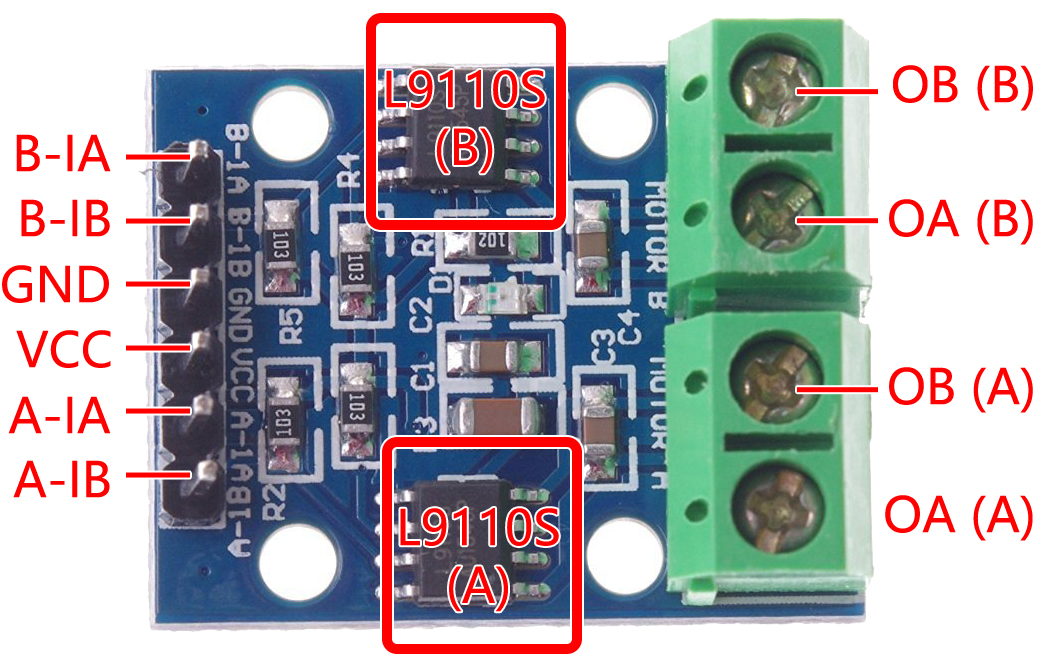
Motor Driver witn 9110 or 9110S 

https://www.laskakit.cz/user/related_files/l9110_2_channel_motor_driver.pdf

https://docs.sunfounder.com/projects/3in1-kit-v2/en/latest/_images/l9110_module.jpg

Wiring

Shows wiring of pump for UNO:

https://docs.sunfounder.com/projects/3in1-kit-v2/en/latest/basic_project/ar_pumping.html#ar-pump


Arduino and soil moisture sensors

 This could be used to water plants or check foundation moisture (at least in Texas).

Step 1 would be to try with watering plants.

Step 2 would be to try outside around foundation.

Others have discussed this, but the 2017 discussion had no working solution. Wifi is more available in 2023.

Product Idea for an Entrepreneur…Foundation Soil Moisture Monitor/Manager

There are many kinds of soil moisture sensors, from very cheap to very expensive.  It has been said these sensors are affected by soil type, like sand, and temperature among other things.

Nice: Soil Moisture Meter 4 in 1, Plant Water Monitor, Automatically detect Moisture/Temperature/Fertility, Can Connect to Mobile Phone via Bluetooth, Hygrometer Sensor for Indoor Plants BUT Bluetooth not WiFi

Cheap: Resistive (2 probe) vs Capacitive (1 probe)

https://www.hackster.io/devashish-gupta/capacitive-v-s-resistive-soil-moisture-sensor-e241f2

Sample project:

https://www.hackster.io/lifelyteam/soil-moisture-sensor-and-much-more-4d03fd


USE THESE:

Soil Moisture Sensor For Plants (V1.2/v2.0)

Water Your Garden with IoT - Soil Moisture Sensors


Ardiuno IOT cloud How-To

 https://youtu.be/pgGpuws7f9o?list=PLWNDWPAClRVr7Y4cv1H0WAcB9Zqwgpi9p


Arduino Soil Moisture Sensor (Lesson #14)  Resistive (2 prong)

Interfacing Capacitive Soil Moisture Sensor with Arduino Capacitive (1 prong)


Tuesday, November 28, 2023

Is my set-up working?

via HW: Blink LED and SW: hello world

  • HW needed: Arduino Uno R3   (or Tinkercad Arduino Uno)
  • SW needed: Arduino IDE 2.x  is now there. Total rewrite. Even if using simulation, it is helpful to see default and example codes. so File>Examples> ...   is still useful.

  • Alt. HW/SW: Tinkercad, a design and simulation tool will be used for examples.   Nice for design and testing before buying.  [Also at of post, I'm traveling with no HW.] It is useful for more than just Arduino simulations.
Programming language: C

Hello world s

HW Connection working?

Blink an LED is the  HW Hello World when using a microcontroller. It tests that the communication between your computer and the microcontroller work.

So running blink example is a good way to test if your Arduino to your computer communication is working correctly.  The blink example code blinks the LED next to pin 13.   
file>examples>basics>blink

From Arduino IDE  1) Verify and 2) Upload  
If the LED on the Arduino board is blinks then the communication is working.

Notice:
In blink C code notice that LED must be setup via  a C #define name is used to identify the LED.
The pin mode must be initialized in setup() via calling the pinmode(LED pin, mode) 

SW Hello World

file>new  Provides and empty setup() and loop() functions.
Print "hello world" once only needs setup() function.

Arduino "print" output goes to the serial monitor,
   so need to use Serial.print(...) and Serial.println(,,,).
  1. in setup() function add:   Serial.begin(9600) // where 9600 is the baud rate most commonly used.
  2. Then Serial.println("Hello world") can be added.
Remember anything in loop() function" will be keep being repeated. If value changes then want print in loop(). If value doesn't change, then want print only in setup() function, like a title line.

Output appears in the Serial Monitor.
Try both HW blink and SW Hello World to serial monitor.

HW:
Create +  > Circuit Design
Drag an Arduino Uno  into your design area

SW:
1, Click on Code button
    Arduino Uno component comes with blink code (blocks, text, both) in Tinkercad.
    Default to seeing the block code. You may find this helpful if moving from block code to C.
2, In dropdown chose text  to just see the C code
3. Start Simulation button does both the equivalent of Compile and Upload

From IOT viewpoint

I'm taking the Coursera IOT specialization in hopes of learning enough to do my own IOT projects besides learning more for teaching. It repeats Arduino basics, but emphasis is on enough of an overview to research and do your projects when course finished. 

Coursera IOT specialization
Courses 4&5 are on Raspberry PI. First course is overview of IOT concepts and last course is an independent project using specialization concepts.

Overview Tools, concepts, and related simple projects will be shared, but this first entry is overview of tools  and IOT viewpoint taken. More concepts covered.  The next few posts will emphasize concepts, whys, best practices where known,  more than just how-to. Any differences between simulations and using hardware will be included where known.

Internet of Things (IOT)  projects vs stand-alone projects:
IOT projects connect to internet so the data can be looked at, changed, saved and stored outside of the device.

Stand-alone projects can expanded to become IOT projects.   HW to connect to the internet or a device connected to the internet needs to be available or added.


Friday, August 28, 2020

Arduino Onboard Status LEDs

Arduino has 4 Onboard LEDs.  Three have pins associated with them, which can be useful.
Below are tutorials to understand and use these onboard LEDs and associated pins and features.
  1. Power LED
  2. Status LED on pin 13
  3. RX status Serial LED on pin 0
    • Receiving data
  4. TX status Serial LED on pin 1
    • Transmitting data  

Arduino Onboard embedded LEDs

Overview


1. Onboard Power green LED

This green  LED is hardwired to be on if the Arduino has power, so there is no software control.


2. Status LED on pin 13

LED_BUILTIN is set to 13

How to blink LED 13


3./4. RX/TX LEDs

Short version: 

Serial input here is a kind of CLI (command line interface) using
  • Serial.begin(<baudRate>)
  • Serial.println(...) for debug  
  • Serial.write(...) for input

Arduino Tutorial #4: Serial Communication 

Understanding Serial use and when TX/RX LEDs light-up

Summary :

  • regular setup,
    • Serial.begin(9600);  // in: baud rate
  • serial input/output 
    • x = Serial.read(...); // in: what writing like '1' or "Hello" or variable like x 
      • reads in
    • Serial.print(...); //  x, the value of variable  or '1' or 
      • used for a lot for debugging
  • what LEDs light up on the Arduino itself. 
    • rx/tx LEDs behind the USB port
Also see Arduino Reference for Serial class: here

Raspberry Pi - Arduino Serial Communication

  • Communicates over USB cable
  • Be use to check the GPIO pins match the Raspberry PI you are using.

More advanced ideas for using Arduino serial communication

Here are ideas on how to explore more advanced ways to serial communication for your projects:

Search  "Communicating between 2 Arduinos" from arduino.cc/reference

  • see Project Hub results

Google "Communicating between 2 Arduinos"

Software communication to Arduino not using Arduino C++:


Saturday, August 22, 2020

What's that buzz from my Ardiuno

Its not good. Something is or may soon be damaged!
I unplugged my Arduino fairly fast and best I can tell, there has been no permanent damage.

I'm still learning causes, but most causes seem to be related to power usage.
In my case I was running 2 DC motors off the Arduino, where 1 motor especially sometimes pulled a lot of current.
The circuit needed to be using an external power source, like a 9V battery to run the motors.

Why would my program run fine sometimes and buzz other times?  In part because I often used only 1 motor at a time and the motor drew less current after a second or so. So my delay time made a difference.

Using a multi-meter and battery, I measured the current each motor drew and found:

1. Not bad idea to know what current is being used, especially by small motors.
2. Two motors need an external power source because exceed the max current the Arduino can support(~2A).

Wednesday, August 12, 2020

Buttons, Buttons, who got the Button connection?

Here 4 basic button connections are documented in breadboard diagrams, so easy to duplicate. The connections come from RS tutorial video, where they are explained in more detail and shown working.

Arduino Video Tutorial - 01 Get to know your Tools with Massimo Banzi (starting at ~4:40)

The Button: 
Buttons, LEDs, jumper cables are available online at Amazon or in person at EPO Houston.

Button Circuit Connections

  • Top/bottom have 2 wire connectors 
    • place on different lines on breadboard
  • Left/right have no connectors
    • line up with breadboard line.
  • Push button to close circuit from left side to right side of button

Breadboard Wiring Diagrams (for tutorial examples)

  1. Push button to light LED directly
  2. Push button with wire to connect button to the LED
  3. Two push buttons in series, so both buttons must be pushed to light LED
  4. Two push buttons in parallel, so if either button (or both) are pushed the LED will light.

Arduino and pump

Motor Driver witn 9110 or 9110S  https://www.laskakit.cz/user/related_files/l9110_2_channel_motor_driver.pdf https://docs.sunfounder.com/pro...